Move the Mouse Cursor over all Enterable Text Boxes. Cursor should change from arrow to Insert Bar. If it doesn't then the text in the box should be grey or non-updateable. Refer to previous page.
Enter text into Box
Try to overflow the text by typing to many characters - should be stopped Check the field width with capitals W.
Enter invalid characters - Letters in amount fields, try strange characters like + , - * etc. in All fields.
SHIFT and Arrow should Select Characters. Selection should also be possible with mouse. Double Click should select all text in box.
Option (Radio Buttons) 
Left and Right arrows should move 'ON' Selection. So should Up and Down.. Select with mouse by clicking.
Check Boxes

Clicking with the mouse on the box, or on the text should SET/UNSET the box. SPACE should do the same
Command Buttons

If Command Button leads to another Screen, and if the user can enter or change details on the other screen then the Text on the button should be followed by three dots.
All Buttons except for OK and Cancel should have a letter Access to them. This is indicated by a letter underlined in the button text. The button should be activated by pressing ALT+Letter. Make sure there is no duplication.
Click each button once with the mouse - This should activate
Tab to each button - Press SPACE - This should activate
Tab to each button - Press RETURN - This should activate
The above are VERY IMPORTANT, and should be done for EVERY command Button.
Tab to another type of control (not a command button). One button on the screen should be default (indicated by a thick black border). Pressing Return in ANY no command button control should activate it.
If there is a Cancel Button on the screen , then pressing should activate it.
If pressing the Command button results in uncorrectable data e.g. closing an action step, there should be a message phrased positively with Yes/No answers where Yes results in the completion of the action.
Drop Down List Boxes
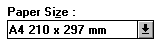 Pressing the Arrow should give list of options. This List may be scrollable. You should not be able to type text in the box.
Pressing a letter should bring you to the first item in the list with that start with that letter. Pressing ‘Ctrl - F4’ should open/drop down the list box.
Spacing should be compatible with the existing windows spacing (word etc.). Items should be in alphabetical order with the exception of blank/none which is at the top or the bottom of the list box.
Drop down with the item selected should be display the list with the selected item on the top.
Make sure only one space appears, shouldn't have a blank line at the bottom.
Combo Boxes

Should allow text to be entered. Clicking Arrow should allow user to choose from list
List Boxes
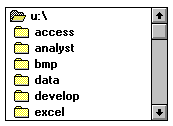
Should allow a single selection to be chosen, by clicking with the mouse, or using the Up and Down Arrow keys.
Pressing a letter should take you to the first item in the list starting with that letter.
If there is a 'View' or 'Open' button beside the list box then double clicking on a line in the List Box, should act in the same way as selecting and item in the list box, then clicking the command button.
Force the scroll bar to appear, make sure all the data can be seen in the box.
2. Screen Validation Checklist
Aesthetic Conditions:
1. Is the general screen background the correct color?.
2. Are the field prompts the correct color?
3. Are the field backgrounds the correct color?
4. In read-only mode, are the field prompts the correct color?
5. In read-only mode, are the field backgrounds the correct color?
6. Are all the screen prompts specified in the correct screen font?
7. Is the text in all fields specified in the correct screen font?
8. Are all the field prompts aligned perfectly on the screen?
9. Are all the field edit boxes aligned perfectly on the screen?
10. Are all groupboxes aligned correctly on the screen?
11. Should the screen be resizable?
12. Should the screen be minimisable?
13. Are all the field prompts spelt correctly?
14. Are all character or alpha-numeric fields left justified? This is the default unless otherwise specified.
15. Are all numeric fields right justified? This is the default unless otherwise specified.
16. Is all the microhelp text spelt correctly on this screen?
17. Is all the error message text spelt correctly on this screen?
18. Is all user input captured in UPPER case or lower case consistently?
19. Where the database requires a value (other than null) then this should be defaulted into fields. The user must either enter an alternative valid value or leave the default value intact.
20. Assure that all windows have a consistent look and feel.
21. Assure that all dialog boxes have a consistent look and feel.
Validation Conditions:
1. Does a failure of validation on every field cause a sensible user error message?
2. Is the user required to fix entries which have failed validation tests?
3. Have any fields got multiple validation rules and if so are all rules being applied?
4. If the user enters an invalid value and clicks on the OK button (i.e. does not TAB off the field) is the invalid entry identified and highlighted correctly with an error message.?
5. Is validation consistently applied at screen level unless specifically required at field level?
6. For all numeric fields check whether negative numbers can and should be able to be entered.
7. For all numeric fields check the minimum and maximum values and also some mid-range values allowable?
8. For all character/alphanumeric fields check the field to ensure that there is a character limit specified and that this limit is exactly correct for the specified database size?
9. Do all mandatory fields require user input?
10. If any of the database columns don’t allow null values then the corresponding screen fields must be mandatory. (If any field which initially was mandatory has become optional then check whether null values are allowed in this field.)
Navigation Conditions:
1. Can the screen be accessed correctly from the menu?
2. Can the screen be accessed correctly from the toolbar?
3. Can the screen be accessed correctly by double clicking on a list control on the previous screen?
4. Can all screens accessible via buttons on this screen be accessed correctly?
5. Can all screens accessible by double clicking on a list control be accessed correctly?
6. Is the screen modal. i.e. Is the user prevented from accessing other functions when this screen is active and is this correct?
7. Can a number of instances of this screen be opened at the same time and is this correct?
Usability Conditions:
1. Are all the dropdowns on this screen sorted correctly? Alphabetic sorting is the default unless otherwise specified.
2. Is all date entry required in the correct format?
3. Have all pushbuttons on the screen been given appropriate Shortcut keys?
4. Do the Shortcut keys work correctly?
5. Have the menu options which apply to your screen got fast keys associated and should they have? 6. Does the Tab Order specified on the screen go in sequence from Top Left to bottom right? This is the default unless otherwise specified.
7. Are all read-only fields avoided in the TAB sequence?
8. Are all disabled fields avoided in the TAB sequence?
9. Can the cursor be placed in the microhelp text box by clicking on the text box with the mouse?
10. Can the cursor be placed in read-only fields by clicking in the field with the mouse?
11. Is the cursor positioned in the first input field or control when the screen is opened?
12. Is there a default button specified on the screen?
13. Does the default button work correctly?
14. When an error message occurs does the focus return to the field in error when the user cancels it?
15. When the user Alt+Tab’s to another application does this have any impact on the screen upon return to The application?
16. Do all the fields edit boxes indicate the number of characters they will hold by there length? e.g. a 30 character field should be a lot longer
Data Integrity Conditions:
1. Is the data saved when the window is closed by double clicking on the close box?
2. Check the maximum field lengths to ensure that there are no truncated characters?
3. Where the database requires a value (other than null) then this should be defaulted into fields. The user must either enter an alternative valid value or leave the default value intact.
4. Check maximum and minimum field values for numeric fields?
5. If numeric fields accept negative values can these be stored correctly on the database and does it make sense for the field to accept negative numbers?
6. If a set of radio buttons represent a fixed set of values such as A, B and C then what happens if a blank value is retrieved from the database? (In some situations rows can be created on the database by other functions which are not screen based and thus the required initial values can be incorrect.)
7. If a particular set of data is saved to the database check that each value gets saved fully to the database. i.e. Beware of truncation (of strings) and rounding of numeric values.
Modes (Editable Read-only) Conditions:
1. Are the screen and field colors adjusted correctly for read-only mode?
2. Should a read-only mode be provided for this screen?
3. Are all fields and controls disabled in read-only mode?
4. Can the screen be accessed from the previous screen/menu/toolbar in read-only mode?
5. Can all screens available from this screen be accessed in read-only mode?
6. Check that no validation is performed in read-only mode.
General Conditions:
1. Assure the existence of the "Help" menu.
2. Assure that the proper commands and options are in each menu.
3. Assure that all buttons on all tool bars have a corresponding key commands.
4. Assure that each menu command has an alternative(hot-key) key sequence which will invoke it where appropriate.
5. In drop down list boxes, ensure that the names are not abbreviations / cut short
6. In drop down list boxes, assure that the list and each entry in the list can be accessed via appropriate key / hot key combinations.
7. Ensure that duplicate hot keys do not exist on each screen
8. Ensure the proper usage of the escape key (which is to undo any changes that have been made) and generates a caution message "Changes will be lost - Continue yes/no"
9. Assure that the cancel button functions the same as the escape key.
10. Assure that the Cancel button operates as a Close button when changes have be made that cannot be undone.
11. Assure that only command buttons which are used by a particular window, or in a particular dialog box, are present. - i.e make sure they don't work on the screen behind the current screen.
12. When a command button is used sometimes and not at other times, assure that it is grayed out when it should not be used.
13. Assure that OK and Cancel buttons are grouped separately from other command buttons.
14. Assure that command button names are not abbreviations.
15. Assure that all field labels/names are not technical labels, but rather are names meaningful to system users.
16. Assure that command buttons are all of similar size and shape, and same font & font size.
17. Assure that each command button can be accessed via a hot key combination.
18. Assure that command buttons in the same window/dialog box do not have duplicate hot keys.
19. Assure that each window/dialog box has a clearly marked default value (command button, or other object) which is invoked when the Enter key is pressed - and NOT the Cancel or Close button
20. Assure that focus is set to an object/button which makes sense according to the function of the window/dialog box .
21. Assure that all option buttons (and radio buttons) namesare not abbreviations.
22. Assure that option button names are not technical labels, but rather are names meaningful to system users.
23. If hot keys are used to access option buttons, assure that duplicate hot keys do not exist in the same window/dialog box.
24. Assure that option box names are not abbreviations.
25. Assure that option boxes, option buttons, and commandbuttons are logically grouped together in clearly demarcated areas "Group Box"
26. Assure that the Tab key sequence which traverses thescreens does so in a logical way.
27. Assure consistency of mouse actions across windows.
28. Assure that the color red is not used to highlight active objects (many individuals are red-green color blind).
29. Assure that the user will have control of the desktop withrespect to general color and highlighting (the application should notdictate the desktop background characteristics).
30. Assure that the screen/window does not have a cluttered appearance
31. Ctrl + F6 opens next tab within tabbed window
32. Shift + Ctrl + F6 opens previous tab within tabbed window
33. Tabbing will open next tab within tabbed window if on last field of current tab
34. Tabbing will go onto the 'Continue' button if on last field of last tab within tabbed window.
35. Tabbing will go onto the next editable field in the window
36. Banner style & size & display exact same as existing windows
37. If 8 or less options in a list box, display all options on open of list box - should be no need to scroll
38. Errors on continue will cause user to be returned to the tab and the focus should be on the field causing the error. (i.e the tab is opened, highlighting the field with the error on it)
39. Pressing continue while on the first tab of a tabbed window (assuming all fields filled correctly) will not open all the tabs.
40. On open of tab focus will be on first editable field
41. All fonts to be the same
42. Alt+F4 will close the tabbed window and return you to main screen or previous screen (as appropriate), generating"changes will be lost" message if necessary.
43. Microhelp text for every enabled field & button
44. Ensure all fields are disabled in read-only mode
45. Progress messages on load of tabbed screens
46. Return operates continue
47. If retrieve on load of tabbed window fails window should not open
Specific Field Tests
Date Field Checks
Assure that leap years are validated correctly & do not cause errors/miscalculations
Assure that month code 00 and 13 are validated correctly & do not cause errors/miscalculations
Assure that 00 and 13 are reported as errors
Assure that day values 00 and 32 are validated correctly & do not cause errors/miscalculations
Assure that Feb. 28, 29, 30 are validated correctly & do not cause errors/ miscalculations
Assure that Feb. 30 is reported as an error
Assure that century change is validated correctly & does not cause errors/ miscalculations
Assure that out of cycle dates are validated correctly & do not cause errors/miscalculations
Numeric Fields
Assure that lowest and highest values are handled correctly
Assure that invalid values are logged and reported
Assure that valid values are handles by the correct procedure
Assure that numeric fields with a blank in position 1 are processed or reported as an error
Assure that fields with a blank in the last position are processed or reported as an error an error
Assure that both + and - values are correctly processed
Assure that division by zero does not occur
Include value zero in all calculations
Include at least one in-range value
Include maximum and minimum range values
Include out of range values above the maximum and below the minimum
Assure that upper and lower values in ranges are handled correctly
Alpha Field Checks
Use blank and non-blank data
Include lowest and highest values
Include invalid characters & symbols
Include valid characters
Include data items with first position blank
Include data items with last position blank
Validation Testing - Standard Actions On every Screen
Add
View
Change
Delete
Continue
Add
View
Change
Delete
Cancel
Fill each field - Valid data
Fill each field - Invalid data
Different Check Box combinations
Scroll Lists
Help
Fill Lists and Scroll
Tab
Tab Order
Shift Tab
Shortcut keys - Alt + F


 Window Should return to an icon on the bottom of the screen



 Posts
Posts


